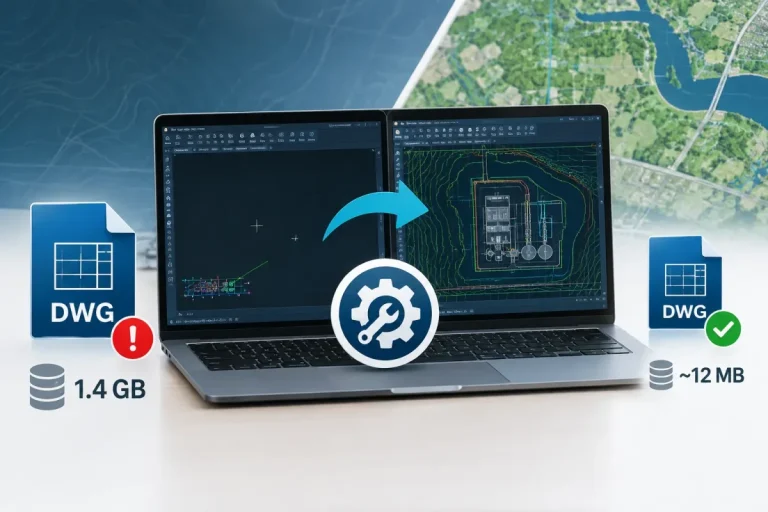

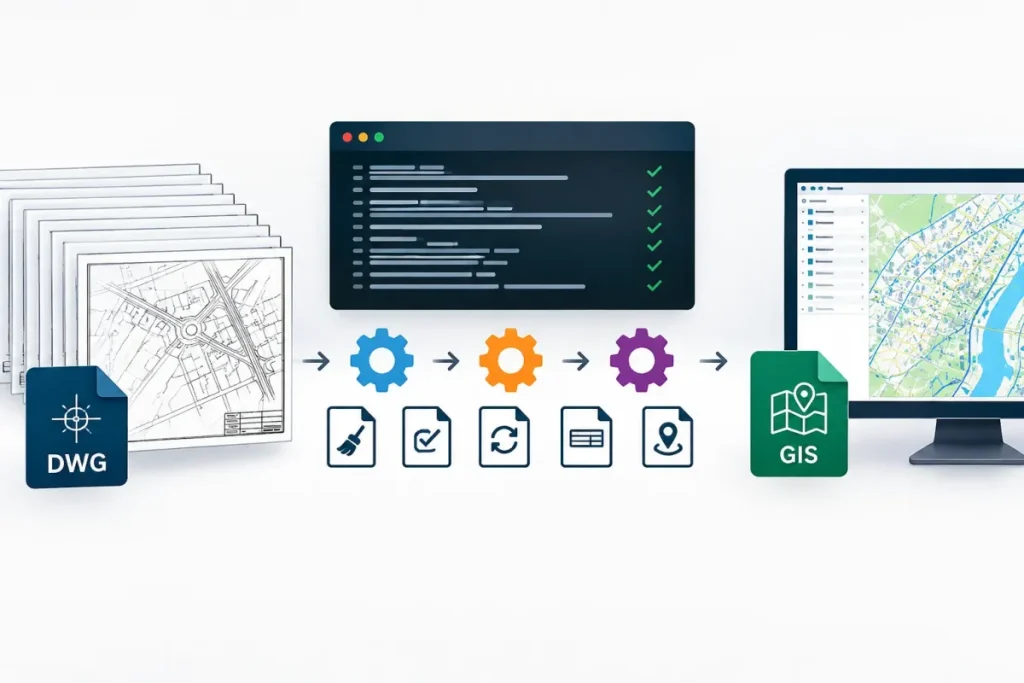

The largest batch job I ever ran was on a weekend, and it began with a sentence that I should have taken more seriously: “It’s just eighteen hundred drawings.” An asset owner was moving to a new document system, and every drawing in a thirty-year archive had to be brought to the current standard: purged, audited, converted to a single DWG version, stripped of old xrefs, stamped with a new title block and then exported to a GIS-ready format for the records team. A single drawing took about four minutes of attention by hand. Eighteen hundred drawings at four minutes is a hundred and twenty hours, which is three working weeks, which was a fortnight more than we had.
We ran it as a batch. It took eleven hours of machine time, most of it overnight, and about two days of my own, because the hard part of batch processing is not running the job. It is everything that surrounds it: choosing the tool, protecting the originals, handling the drawings that behave badly (and in thirty years of archive, a lot of them do), logging what happened, checking that the output is right, and being able to prove it afterwards. I learned that weekend that a batch job is a small production line, and that the quality of the line is the quality of the product.
This guide shows you how to build that line. I’ll explain the three main routes for batch processing DWG files: script files run headlessly with the AutoCAD Core Console, external tools and Python that read drawings without opening AutoCAD, and FME (and open-source alternatives like GDAL) for conversion between CAD and GIS. I’ll give you a tested Python orchestrator that runs jobs in parallel with timeouts, retries and a CSV report, the safety rules, the QA checks, and a worked example. It is part of our Autodesk series. For the building blocks, see Automating AutoCAD Map 3D: Scripts, AutoLISP and the .NET API, and for the conversion side, Working with DWG and DXF Files in GIS (QGIS, ArcGIS, GDAL).
A note on facts: command-line switches, supported commands and licensing for headless tools differ between versions and products, and I can’t test Autodesk programs here. The Autodesk-specific examples are patterns to verify in your own installation. The Python orchestrator in this guide was tested with a stand-in program.
What Kinds of Jobs Are Batch Jobs?
If a task is the same for every drawing, it is a batch candidate. Typical tasks:
| Task | Typical tool |
|---|---|
| Purge, audit and recover | Script in the Core Console |
| Save to a standard DWG version | Script, or a version converter |
| Replace title blocks, update attributes | LISP or .NET in the Core Console |
| Fix external reference paths | LISP or .NET |
| Standardize layers (translate to the office standard) | Layer translation, standards tools, .NET |
| Plot or publish to PDF | Core Console plot, publishing tools, cloud services |
| Extract data (block attributes, object data, counts) | .NET, data extraction, or reading DXF with Python |
| Convert to GIS formats (GeoPackage, Shapefile, geodatabase) | FME, GDAL, Map 3D export profiles |
| QA reports (layers, text, xrefs, sizes, coordinate systems) | Python on DXF, or .NET |
| Check against CAD standards | Batch standards checking tools |
Route 1: The AutoCAD Core Console
What it is
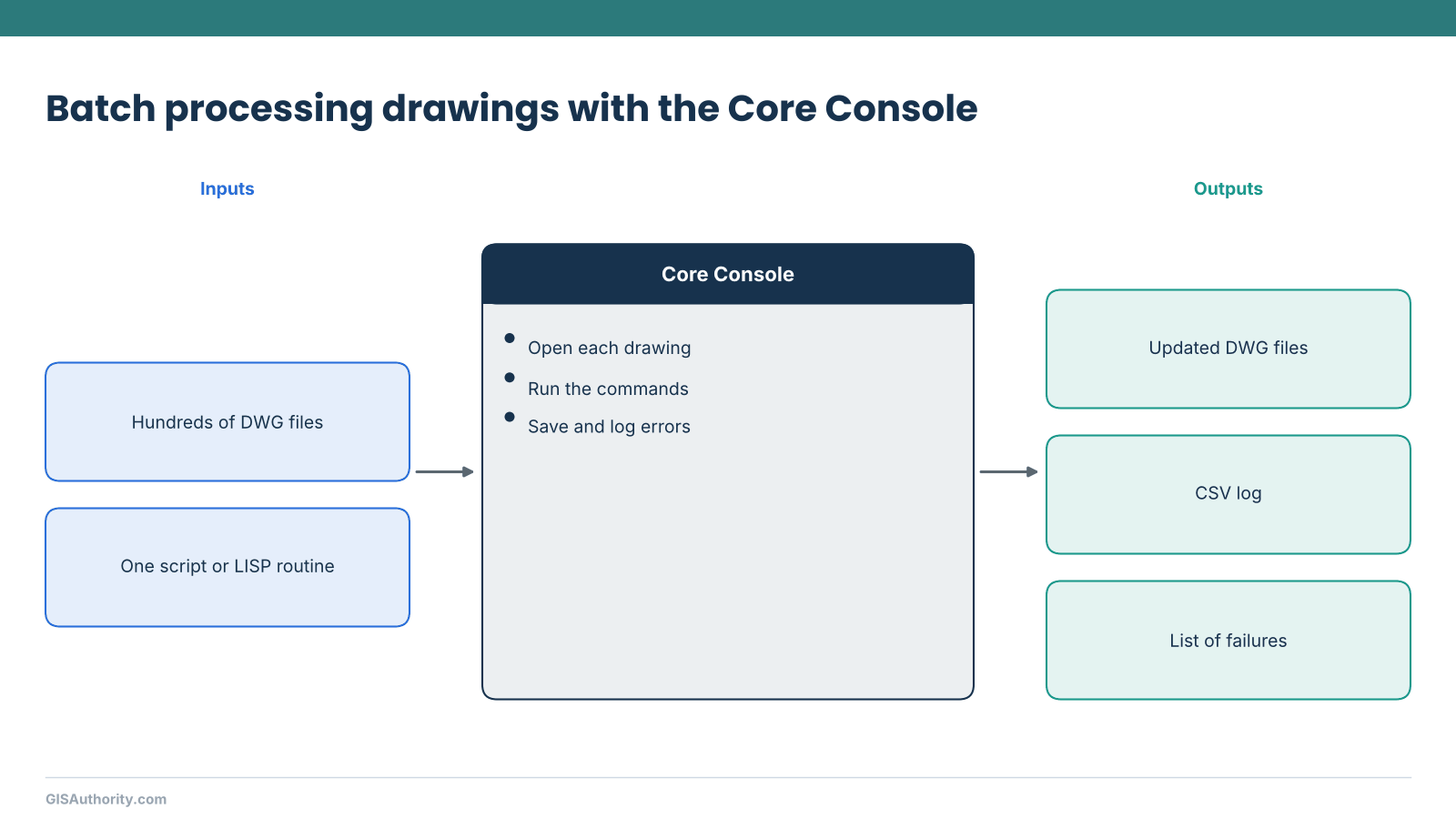
The AutoCAD Core Console is a command-line version of the AutoCAD engine: it has no user interface, it starts fast, and it can run script files and .NET commands on drawings in the background. It is installed with the full product, as a program called accoreconsole.exe in the installation folder. It’s the standard way to run AutoCAD-based processing in batch, on a server, or on a schedule. Civil 3D and some other Autodesk products offer product-specific options so that their objects can be processed (check the switches that your version documents).
Why it matters for batch work
- No interface: nothing to click, nothing to hang waiting for a dialog.
- Fast: no screen redraws.
- Scriptable and schedulable: run it from a command window, a scheduled task or a Python program.
- Real AutoCAD engine: it understands DWG natively, including many object types, which matters for fidelity.
- Extensible: load a .NET assembly in the script, and run your own commands.
What it can’t do
- Anything that needs a window: dialogs, palettes, some commands that depend on the interface.
- All commands: the Core Console supports a subset. Test each command you want to use.
- Anything that needs a user: prompts without answers will stall the script.
Running it
The general form is:
accoreconsole.exe /i "C:\archive\pump_station.dwg" /s "C:\scripts\clean.scr" /l en-US/i is the input drawing, /s the script, and /l the language (which determines how commands are interpreted). Other switches exist (for example, to select a product profile or to load plugins), and they vary by version. Run accoreconsole.exe /? to see the options of your installation.
The script is the same kind of file as in the previous guide. For batch use, make it:
- Self-contained: no prompts that aren’t answered in the file.
- Saving explicitly: use
_.QSAVEor_.SAVEASto a different output folder, and not over the original. - Ending cleanly, so that the process exits.
_.AUDIT
_Y
_.-PURGE
_A
*
_N
_.SAVEAS
2018
C:\output\pump_station.dwg
Check the prompts of SAVEAS and -PURGE in your version, and rehearse the script by hand on a test drawing.
Using your own .NET commands
For anything beyond a script, load your assembly and run your command inside the script:
_.NETLOAD
C:\tools\OfficeTools.dll
COUNTBYLAYER
_.QUIT
Trusted locations and security settings (SECURELOAD and TRUSTEDPATHS) may block loading, so set them deliberately for the batch machine. Output messages written to the command line appear in the console, which you can capture in a log file.
Missing xrefs, fonts and proxies
A drawing from an archive is rarely perfect:
- Missing external references: the script runs with the xref unresolved. Decide in advance whether that is acceptable, and log it.
- Missing fonts: substitutions change text appearance.
- Proxy objects (custom objects from applications that are not installed, such as Civil 3D objects opened without Civil 3D) can’t be processed properly, and may be damaged by a save. Use the matching product for those drawings. See Civil 3D Data Shortcuts and Xref Problems.
- Older drawing versions upgrade on save, and can’t be reversed.
The Orchestrator: Running Jobs Safely and in Parallel
Running the Core Console from a command window once is easy. Running it on 1,800 drawings, safely, is a program of its own. The orchestrator’s job:
- Find the drawings.
- Run one job per drawing, with a timeout (a drawing that hangs must not stall the batch).
- Retry failures once, since some fail transiently.
- Run several in parallel, within the limits of your machine and licensing.
- Capture the output (the exit code and the log), per drawing.
- Write a report (CSV), so that you know exactly what happened to every file.
A Python version, tested here with a stand-in program that simulates good, failing and hanging drawings:
import csv
import subprocess
import time
from concurrent.futures import ThreadPoolExecutor, as_completed
from pathlib import Path

def run_one(exe, dwg, script, timeout, retries=1):
    """Run the console once per attempt. Returns a dictionary describing the outcome."""
    last = None
    for attempt in range(1, retries + 2):
        t0 = time.time()
        try:
            p = subprocess.run(
                [exe, "/i", str(dwg), "/s", str(script), "/l", "en-US"],
                capture_output=True, text=True, timeout=timeout)
            status = "OK" if p.returncode == 0 else f"EXIT_{p.returncode}"
            last = {"drawing": str(dwg), "status": status, "seconds": round(time.time() - t0, 1),
                    "attempts": attempt,
                    "log": (p.stdout + p.stderr).strip().replace("\n", " | ")[:300]}
        except subprocess.TimeoutExpired:
            last = {"drawing": str(dwg), "status": "TIMEOUT", "seconds": timeout,
                    "attempts": attempt, "log": ""}
        if last["status"] == "OK":
            break
    return last

def run_batch(exe, drawings, script, workers=2, timeout=600, retries=1, report="batch_report.csv"):
    rows = []
    with ThreadPoolExecutor(max_workers=workers) as pool:
        futures = [pool.submit(run_one, exe, d, script, timeout, retries) for d in drawings]
        for f in as_completed(futures):
            rows.append(f.result())
    rows.sort(key=lambda r: r["drawing"])
    with open(report, "w", newline="", encoding="utf-8") as fh:
        w = csv.DictWriter(fh, fieldnames=["drawing", "status", "seconds", "attempts", "log"])
        w.writeheader()
        w.writerows(rows)
    return rows

if __name__ == "__main__":
    exe = r"C:\Program Files\Autodesk\AutoCAD 2025\accoreconsole.exe"     # adjust to your installation
    drawings = sorted(Path(r"C:\batch\input").glob("*.dwg"))
    rows = run_batch(exe, drawings, r"C:\batch\scripts\clean.scr", workers=3, timeout=900)
    print({s: sum(1 for r in rows if r["status"] == s) for s in {r["status"] for r in rows}})
In a test with five drawings, one of which fails to open and one of which hangs, the report showed three drawings OK on the first attempt, one failing with an exit code after two attempts and one timing out after two attempts. That is exactly the behavior you want: no stalls, nothing lost silently, and a record. Adapt it to your environment:
- The script and output must write to a separate folder, so that the originals are never touched. One approach: the orchestrator copies each drawing into a work folder first, runs the script on the copy, and moves the result to the output folder.
- The script is per drawing if it contains the drawing’s name (see the generator in the previous guide), or generic if it only works on the open drawing.
- Parallelism and licensing: each Core Console instance consumes resources, and may be subject to licensing rules. Test the number of workers on your machine and check the terms with Autodesk.
- Memory: very large drawings can use a lot, so size the workers accordingly.
- Paths with spaces and special characters: quote them, and test.
- Network drives: copy locally to process, and back after.
Route 2: Reading Drawings Without AutoCAD
Many batch jobs don’t need to change a drawing. They need to report on it, and for that, an external program reading DXF is much faster and needs no AutoCAD license.
Converting DWG to DXF in bulk
The ODA File Converter (from the Open Design Alliance) is a free command-line and graphical tool that converts between DWG and DXF versions in bulk. Its command-line form takes input and output folders, the output version and format, and flags for recursion and auditing:
ODAFileConverter "C:\archive\dwg" "C:\work\dxf" ACAD2018 DXF 0 1(The arguments are: input folder, output folder, output version, output type, recurse 0 or 1, audit 0 or 1. Check the tool’s documentation for your version.) With DXF files in hand, any DXF-capable tool can read them.
A QA report with Python
With the open-source ezdxf library, a script can read each DXF and summarize it: layer names, counts by entity type, text heights, block names, external references and the document’s header variables, such as units.
import csv
from pathlib import Path
import ezdxf

def summarize(path):
    doc = ezdxf.readfile(path)
    msp = doc.modelspace()
    layers = {layer.dxf.name for layer in doc.layers}
    types = {}
    for e in msp:
        types[e.dxftype()] = types.get(e.dxftype(), 0) + 1
    return {
        "file": Path(path).name,
        "version": doc.dxfversion,
        "units": doc.header.get("$INSUNITS", 0),         # 0 = unspecified, 4 = mm, 6 = m
        "layers": len(layers),
        "entities": sum(types.values()),
        "texts": types.get("TEXT", 0) + types.get("MTEXT", 0),
        "inserts": types.get("INSERT", 0),
    }

rows = []
for p in sorted(Path("work/dxf").glob("*.dxf")):
    try:
        rows.append(summarize(p))
    except Exception as err:                          # corrupted drawings are normal in an archive
        rows.append({"file": p.name, "version": "ERROR", "units": str(err)[:80]})

with open("archive_summary.csv", "w", newline="", encoding="utf-8") as fh:
    w = csv.DictWriter(fh, fieldnames=sorted({k for r in rows for k in r}))
    w.writeheader()
    w.writerows(rows)
(Library attribute names change between versions, so check the documentation, and extend the report with the checks you care about, such as external references, text heights and block names. The $INSUNITS header variable holds the drawing units code.) A report like this on an archive tells you, in minutes, which drawings have no units, which are huge, which have dozens of layers and which are corrupt, before you run any job that changes them. It also lets you plan the effort.
Route 3: FME for Conversion Between CAD and GIS
What FME is
FME is a commercial data integration platform from Safe Software, built around visual workflows (in its Workbench application) that read data from one or many formats, transform it and write it to others. It supports a huge range of formats, including DWG, DXF and DGN on the CAD side, and geodatabases, GeoPackage, Shapefile, PostGIS and many others on the GIS side. Its server product (now called FME Flow) runs workflows on schedules or on requests.
Why CAD managers and GIS teams like it
- Readers and writers for CAD formats, with options for layers, blocks, attributes, text and geometry types. Check how your version handles object data and extended data.
- Visual transformers for the typical conversion jobs: filtering by layer, splitting by geometry type, converting closed polylines to polygons, parsing text into attributes, reprojecting, validating geometry, calculating areas, renaming and mapping fields.
- Batch processing across folders of files, with one workflow run per file or as one combined run.
- Error handling and logging, with output of rejected features.
- Scheduling and automation on the server.
- Repeatability and documentation: the workflow is a diagram that others can read.
Typical CAD-to-GIS workflow in FME
- Reader: the DWG files from a folder, with the layers of interest.
- Filter by CAD layer, and split by geometry type.
- Assign the coordinate system (and reproject if needed). See Missing or Unknown Projection: How to Fix It.
- Clean the geometry: remove duplicates, validate, snap with care. See How to Fix Invalid Geometry Errors.
- Build polygons from closed lines where appropriate.
- Extract attributes: from block attributes, text (with pattern matching) and file names.
- Rename and type the fields to the target schema. See Understanding Spatial Data Types and Attributes.
- Writer: a GeoPackage or a geodatabase, with one output feature class per theme.
- Report: counts per input file, rejects and warnings.
The cost and the alternatives
FME is commercial, with licensing that suits organizations that do a lot of conversion. The open-source alternative is the combination of GDAL/OGR (the ogr2ogr command-line tool) and Python (with libraries such as ezdxf, GeoPandas and Shapely), which can do much of the same work with more programming and less visual convenience. A batch conversion with GDAL looks like this:
# Convert every DXF in a folder to a GeoPackage layer, assigning the CRS and keeping only chosen CAD layers
for f in work/dxf/*.dxf; do
  name=$(basename "$f" .dxf)
  ogr2ogr -f GPKG "output/${name}.gpkg" "$f" entities \
    -where "Layer IN ('WM-PIPE','WM-VALVE','ROAD')" \
    -nln features -a_srs EPSG:32631 -dim XY
done
(Adjust the layer names, the CRS and the options, and test on a sample. See Working with DWG and DXF Files in GIS (QGIS, ArcGIS, GDAL) for the details, including the geometry-type and block options.)
Choosing: if your team converts CAD to GIS constantly, has non-programmers who must maintain the workflows and values visual documentation, FME is hard to beat. If you have programming skills, a smaller budget or need to embed conversion in your own systems, GDAL and Python are excellent. Many offices use both.
Route 4: CAD Standards Tools and Others
- CAD standards files (DWS) and standards checking: AutoCAD can compare a drawing’s layers, text styles, dimension styles and line types against one or more standards files, and report or fix violations. A batch standards checker utility runs this across many drawings and produces a report. It is one of the most useful tools a CAD manager can have, and it is under-used.
- Layer translation: the layer translator maps layers from one standard to another, using a saved mapping, and can be run on many drawings.
- Publish and batch plot: the publishing tools plot sets of layouts to PDF in one operation, with controlled page setups. See Mapping and Plotting in AutoCAD Map 3D: Styles, Thematic Maps and Map Book.
- eTransmit packages a drawing with its xrefs, fonts and images for sending.
- Map 3D’s saved profiles (import, export, cleanup) can be applied to many drawings, interactively or through scripts, where the commands support it.
- Cloud services can run drawing automation on a server, triggered by events. See Autodesk Platform Services (APS): Web Viewers and APIs for CAD and GIS Data.
The Safety Rules of Batch Processing
Batch jobs multiply both your productivity and your mistakes, by the number of files. These rules are non-negotiable.
- Never touch the originals. Work on copies, and write to a separate output folder. Keep the originals read-only and backed up.
- Back up before you start, and verify that the backup can be restored.
- Pilot first. Run the job on 10 to 20 representative drawings, including the worst ones. Inspect the results by eye.
- Define success in advance: what must be true of the output? Write a check that proves it.
- Log everything: per drawing, the input, the output, the status, the time and the messages.
- Make the job repeatable and idempotent: running it twice should not damage anything.
- Use timeouts and retries, so that one bad drawing doesn’t stop the line.
- Separate the failures into a “needs attention” list, with the reason.
- Reconcile the counts: inputs, outputs, failures and skipped files must add up.
- Check the output with a different tool than the one that produced it. A converter that wrote a file and a viewer that can open it are two different checks.
- Keep the scripts and settings with the results, for provenance.
- Plan for rollback. If the output proves wrong, how do you get back?
- Don’t change the standard mid-run.
- Document what was done, to what, when and by whom.
Quality Assurance for Batch Output
After the batch, prove that it worked.
| Check | How |
|---|---|
| Counts reconcile | Files in, files out, failures, skipped: sum to the total |
| Every output opens | Open a sample in the target software, or read them all with a script |
| Spot checks | Inspect a random sample, and the biggest and smallest files |
| Compare before and after | Number of layers, entities, extents, units. Differences should be explained |
| Standards compliance | Run the standards checker on the outputs |
| Coordinate system and units | Confirm assignment and values on a sample |
| GIS outputs | Feature counts, geometry validity, attribute completeness, coordinate ranges. See How to Fix Invalid Geometry Errors |
| Visual check | Overlay outputs on a reference map |
| Error rate | Failures per hundred files, by cause |
| Sign-off | A named person confirms the results |
A drawing-level comparison can be automated with the summary script above, run on the before and after sets, and the two CSVs compared.
Scheduling and Maintaining Batch Processes
When a batch job must run repeatedly (a nightly export, a weekly archive report), it becomes an operational service:
- Run it on a dedicated machine, with a stable software version and a service account.
- Schedule it with the operating system’s scheduler or an orchestration tool.
- Send notifications when it fails, with the log attached.
- Monitor disk space, since batch outputs accumulate.
- Rotate logs and keep them for audit.
- Version the scripts and workflows, and record which version produced which output.
- Test after every software update, since command behavior and switches change.
- Control access: who may change the jobs and the settings.
- Document the recovery steps.
A Worked Example: Eighteen Hundred Drawings in a Weekend
Task: bring a 30-year archive of 1,800 drawings to the current office standard, and export the records team’s data to a GeoPackage, in one weekend.
- Plan on Thursday: back up the archive (verified), and copy it to a work area. Define the target: DWG 2018 format, purged and audited, standard title block, no unresolved xrefs, a CSV of layers and units, and a GeoPackage of boundary and utility layers with a CRS.
- Inventory: convert all drawings to DXF with the ODA File Converter, and run the Python summary on them. Finding: 240 drawings have no units, 95 have more than 200 layers, 38 fail to open, and 11 are over 100 megabytes.
- Triage: the 38 unreadable drawings go to the “needs attention” list for manual recovery. The units problem is handled by a lookup table from the project register, applied before conversion. The giants are processed separately, single-threaded.
- Pilot on Friday: 25 drawings, including the oddest. Fixes made to the script (a prompt changed in a particular drawing version) and the title block routine (an attribute missing in old blocks).
- Run the clean-up batch overnight: the orchestrator, three workers, 15-minute timeout, one retry. Result: 1,741 OK on the first attempt, 21 OK on retry, 21 timeouts (large or damaged), 17 failures with exit codes. All are logged in the CSV.
- Process the exceptions on Saturday: timeouts rerun individually with a longer limit (14 succeed), and the rest go to the manual list, with the cause recorded.
- Title block and xref paths are updated by a .NET command loaded in the Core Console, with its output written to the log.
- GIS export: FME workflow over the cleaned drawings, filtering the boundary and utility layers, assigning the coordinate system from the project register (with the drawings that lack a register entry flagged), cleaning, and writing the GeoPackage. A rejects layer collects features that fail validation.
- QA on Sunday: counts reconcile (1,800 in, 1,745 clean outputs and 55 on the manual list, with reasons). The summary CSV of the after set is compared with the before set, and unexplained differences investigated (a handful of drawings lost a layer: the cause is a standard-layer merge, which is expected). A 5 percent sample is opened and inspected. The GeoPackage is overlaid on the orthophoto, and the feature counts and geometry validity are checked.
- Sign-off: the CAD manager (me) and the records manager sign the QA report. The 55 manual cases are scheduled.
- Archive and document: the originals, the scripts, the workflow, the logs and the reports are stored together. The batch tool is added to the office’s toolset, with an owner.
Eleven hours of machine time and two days of attention. The lasting value was not the clean archive. It was the tooling and the checks, which turned the next archive project into a one-day job.
Common Mistakes
- Running a job on the original files.
- No backup, or an unverified backup.
- No pilot, and discovering the problem on drawing 1,200.
- No timeouts, so that one drawing stalls the batch.
- No log, so nobody knows what happened to which file.
- Silent failures: treating “no error message” as success.
- Ignoring proxy objects and saving Civil 3D drawings from a product that can’t understand them.
- Changing the script mid-run.
- Overloading the machine with too many parallel workers.
- Forgetting the licensing terms.
- Checking the output with the same tool that made it.
- Skipping the reconciliation of counts.
- No plan for the drawings that fail.
- Running a batch once and not keeping the tooling.
Best Practices
- Inventory first: know what you have before you touch it.
- Work on copies, and keep originals read-only.
- Pilot on the worst drawings.
- Use timeouts, retries, parallelism and a report.
- Choose the right tool: the Core Console for AutoCAD-engine tasks, external readers for reporting, FME or GDAL for conversion.
- Define and verify success.
- Reconcile counts and sample outputs.
- Keep logs, scripts and settings with the results.
- Handle exceptions deliberately.
- Turn one-off jobs into maintained tools.
- Test after software updates.
Final Thoughts
On the Monday after the weekend, the records manager asked how I had known that the batch had worked. I handed her the reconciliation page: every file accounted for, every failure explained, every difference between before and after listed with its cause. She read it for a while, and then said that in eleven years of managing that archive, nobody had ever given her a document that told her what had been done to her drawings. It’s an unusual thing to be thanked for. But it is the heart of batch work. The speed is the bonus. The accountability is the product.
So build your line carefully. Start with an inventory, because it tells you what you are about to touch. Protect the originals. Pilot on the worst cases. Log everything, and reconcile the counts at the end. And when the job is done, keep the tooling, because the next archive is already waiting somewhere in a forgotten folder.
Where to go next: go deeper into the Civil 3D side of automation in Dynamo and the Civil 3D API for Automation, and see how to run drawing processing in the cloud in Autodesk Platform Services (APS): Web Viewers and APIs for CAD and GIS Data.