


The longest meeting I ever attended about a single drawing involved eleven people, a projector and a red text message. The message said that a data reference could not be found. The drawing was the plan-production file for a major highway scheme, the surface it referenced had been built by a team in another city, and the alignment had been edited by a third team that morning. Somewhere in the chain between them, a file had been renamed, a folder had been moved by a colleague who was “just tidying,” and a shortcut that had worked perfectly for fourteen months had quietly stopped pointing at anything.
What made it memorable was not the problem, which took twenty minutes to fix once we found it. It was that eleven professionals, between them with several hundred years of experience, could not explain how the thing worked. We knew which buttons to press. We did not know what a data shortcut was, where it lived, what it pointed at, and how it differed from the external reference that we also used, and so we could not reason about why it had broken. We guessed, we tried things at random, and the more we tried, the more states of confusion we created.
This guide is the explanation I wish I had given that room. Data shortcuts and external references are the plumbing of every Civil 3D project: they let teams share surfaces, alignments, profiles and pipe networks without copying them, and let drawings be assembled from parts. When the plumbing works, nobody notices. When it leaks, everything stops, and the leaks follow a small number of patterns. I’ll explain what each mechanism is, how they differ, how to set up a project so that they behave, the specific failures (missing references, broken shortcuts, stale data, conflicts, performance) and their fixes, a tested helper for auditing the paths in your project, and the standards that stop the plumbing from leaking in the first place. It is part of our Autodesk series. For the program, see Civil 3D for GIS Users: Beginner’s Guide. For related problems, see AutoCAD Map 3D and Civil 3D Slow or Crashing and Corrupted or Bloated DWG Files: Audit, Recover and Purge.
A note on facts: command names, dialogs, supported object types and cloud integrations change with versions, and I cannot run Civil 3D here. The explanations describe the concepts and the commonly reported behavior, to be verified in your version and against Autodesk’s current documentation. The Python path auditing helpers were tested on sample paths.
Two Mechanisms, Two Jobs
The first source of confusion is that Civil 3D projects use two different ways of linking drawings, which people treat as one.
| External reference (xref) | Data shortcut | |
|---|---|---|
| What it links | A whole drawing (as a background), displayed in the host drawing | Specific Civil 3D objects (a surface, an alignment, a profile, a pipe network) from another drawing |
| What you get in the host | The geometry, drawn, but not editable and not “intelligent” | A reference object that behaves like the original (you can label it, build profiles on it, build corridors on it) but is read-only in the host |
| Good for | Context: survey base, topography, other disciplines’ drawings, linework | Design data shared between drawings: existing ground, alignments, finished ground, pipe networks |
| Where the link lives | Stored in the host drawing (path and name of the xref) | Stored in the host drawing as a reference to the shortcut, which points to the source drawing through a shortcut file in the project’s shortcuts folder |
| How you update | Reload the xref | Synchronize, or reopen. The reference notifies you that the source changed |
| Typical failure | “Xref not found” (the path is wrong) | “Data reference could not be found,” or the reference is out of date or broken |
A rule that fits on a sticky note: xrefs for pictures, data shortcuts for design objects. An alignment that must drive a profile, a corridor and labels is not a picture. It needs a shortcut.
How Data Shortcuts Work
The pieces
- The working folder: each user’s local folder for the project’s drawings, set in the Civil 3D project management tools. Data shortcuts are managed relative to it.
- The data shortcuts project folder: a folder (often on the network) that holds the project’s shortcut files, usually XML files that record which drawing and object each shortcut points to.
- Source drawings: the drawings that own the objects (a surface drawing, an alignments drawing).
- Shortcuts: entries that publish an object from a source drawing.
- References: the objects in a consumer drawing that reference those shortcuts.
(Names of the folders and dialogs vary between versions. Civil 3D can also manage data shortcuts in Autodesk’s cloud environment, in versions and configurations that support it. Check the current options.)
Which objects can be shared
The commonly supported types are surfaces, alignments, profiles, pipe networks, pressure networks, sample line groups and view frame groups, and similar. Not everything is shareable: corridors and parcels, for example, have not traditionally been supported as shortcuts, so they are built in the drawing that uses them or handled by other methods. Check what your version supports, and plan the project structure around it.
The workflow
- Create a project and its data shortcuts folder, in a location every team member can reach, with a stable path.
- Each user sets the working folder to their local copy of the project drawings (or the matching location in a cloud environment).
- In the source drawing, create the shortcuts to publish the objects (surface, alignments).
- Save the source drawing. Shortcuts point to saved drawings.
- In the consumer drawing, create references to the shortcuts.
- When the source changes, save it. Consumer drawings are notified, and synchronize to bring in the change.
- To make a reference editable, use promote (it turns the reference into a normal object in the host, severing the link, which is a one-way street).
The structure that works
A project that follows this structure rarely breaks:
Project/
  Survey/          source drawings: existing ground surface, survey points
  Design/          source drawings: alignments, profiles, finished ground, pipe networks
  Sheets/          drawings for plan production, referencing the design objects by shortcut
  Xrefs/           context drawings: base map, topography, other disciplines, title blocks
  Shortcuts/       the data shortcuts folder
  Data/            images, GIS data, point clouds, exchange files
Source drawings own data. Sheet drawings consume data and are never the only home of anything. Context goes in as xrefs. Everything lives in a short, stable path.
How External References Work
An xref attaches another drawing to the host. The host stores the path to it. Key concepts:
- Attach versus overlay: an attached xref is carried along when the host is itself referenced elsewhere (nested references). An overlaid xref is not. Overlay is safer for context drawings, since it avoids long, circular and nested chains.
- Path types: full (absolute) path, relative path, or no path (the name only, with the program searching in set locations). Each has trade-offs, below.
- Search paths: when a file isn’t at the stored path, the program searches the current folder, the host’s folder, and the support and project search paths that are configured. A project name setting can point the program at a project folder.
- Reload, unload, detach, bind: unloading keeps the reference but stops reading it (fast). Detaching removes it. Binding merges the xref into the host, which brings in its definitions (and risks bloat).
- Layer control: xref layers appear with the xref’s name, and their visibility can be retained or reset when the drawing is reopened, depending on a variable setting.
- Clipping: an xref can be clipped to a boundary, which speeds work but may hide problems.
- Notifications: the program can warn when an xref has changed or is missing.
Choosing the path type
| Path type | Stored as | Strengths | Weaknesses |
|---|---|---|---|
| Full (absolute) path | P:\Projects\1234\Xref\Base.dwg | Unambiguous on a machine | Breaks when drive letters, servers or folders differ. The commonest cause of “missing xref” after a move |
| Relative path | ..\Xref\Base.dwg | Survives moving the whole project together | Breaks if the host moves alone. Needs a consistent structure |
| UNC or server path | \\fileserver\proj\1234\Xref\Base.dwg | The same on every machine | Breaks when the server name changes or the project is taken offline |
| No path (name only) | Base.dwg | Flexible | Depends on search paths: unpredictable and slow |
The standard I used: relative paths within a project, and a project folder that always moves as a unit. For work that crosses organizations, package with eTransmit (the software’s package tool), which gathers a drawing with its references, images and fonts into a folder or archive, and adjusts the paths.
The Symptom Table
| Symptom | Cause | Fix |
|---|---|---|
| “Xref not found” or xref shown with a missing marker | The stored path doesn’t exist on this machine (moved, renamed, drive letter, server change) | Correct the path with the reference manager or the xref palette. Use relative paths. Restore the file |
| Xrefs OK for one person, missing for another | Absolute paths with different drive mappings, or a file only on one machine | Use consistent relative or UNC paths. Don’t store paths on personal drives |
| Xref loads, but is in the wrong place | The referenced drawing has a different origin, units, rotation or coordinate system. Or the insertion point, scale and rotation of the xref are wrong | Check the xref’s insertion properties and coordinate systems. See DWG Not Aligning with GIS Data |
| Xref content appears and disappears (layers off) | Layer visibility retention settings, layer overrides, frozen layers in a viewport | Check the retention variable and the viewport layer settings |
| Drawing opens very slowly with many xrefs | Large, nested, circular or unreachable references. Missing xrefs the program searches for | Unload unneeded references, flatten nesting, fix paths |
| Circular reference | Drawing A references B, B references A (directly or through others) | Break the cycle. Use overlays |
| Xref of an xref is missing | Nested attach. The inner path is broken | Fix the inner path (open the intermediate drawing), or use overlay |
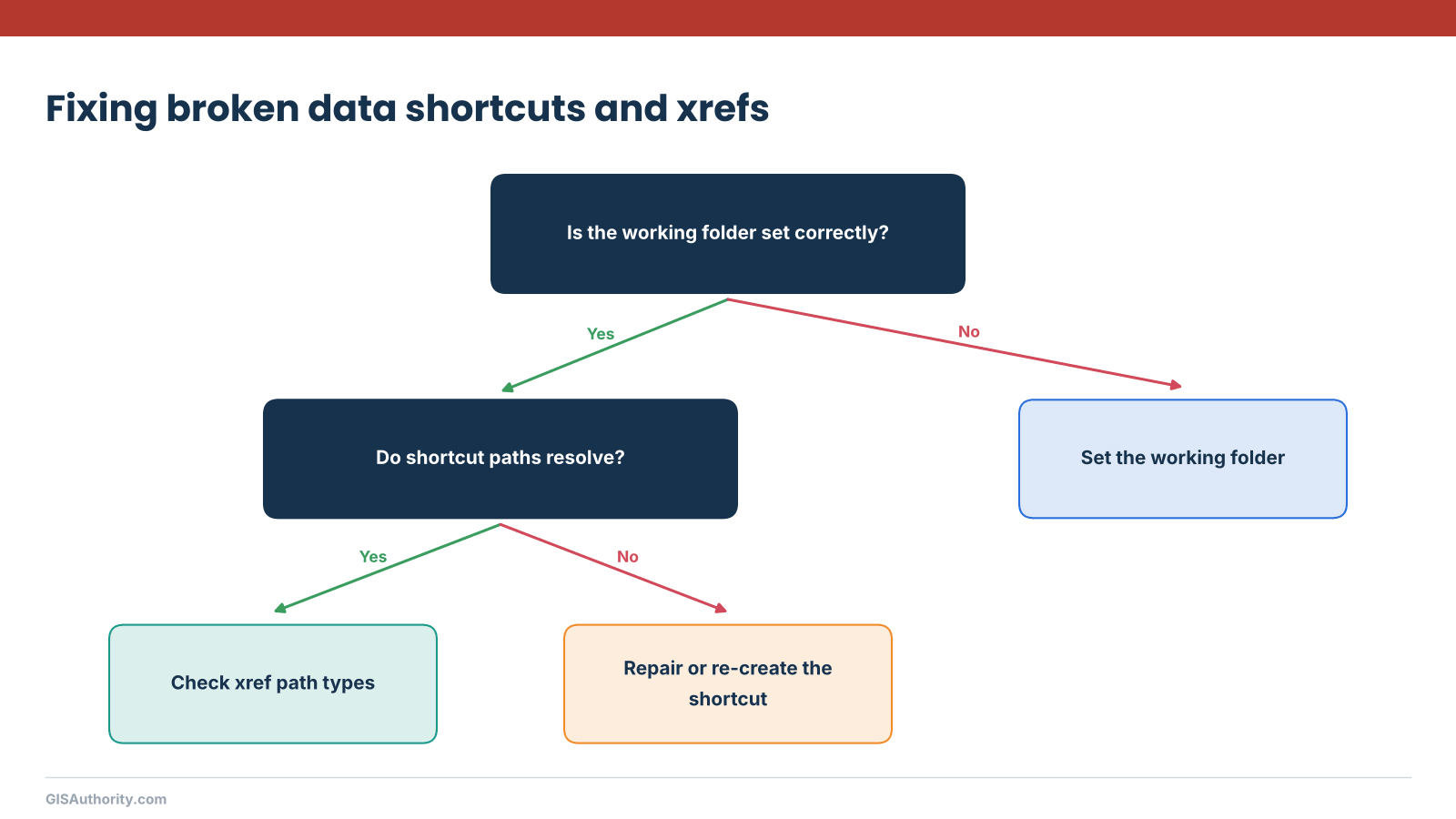
| “Data reference could not be found” or broken shortcut | The shortcut points to a drawing that was moved, renamed or deleted, or the shortcut file is missing | Repair the shortcut (reselect the source), restore the file, or recreate the shortcut and reference |
| Reference object is out of date | The source drawing changed and the host hasn’t synchronized | Synchronize. Make sure the source was saved |
| Changes in the source drawing don’t appear | The source wasn’t saved, a different copy was saved, or the working folder is wrong | Save the source, check the working folder and the file path |
| Can’t edit a referenced object | Correct behavior: references are read-only | Edit in the source, or promote (and accept the severed link) |
| Style, layer or label conflicts on bringing a reference in | The host and the source define the same style names differently | Standardize styles through the template. Choose conflict handling carefully |
| Data shortcuts work for me, not for colleagues | Different working folders, the shortcuts folder not accessible, permissions | Set the working folder and project folder on each machine, check access |
| Shortcuts to a source drawing that is open elsewhere | A locked file or an unsaved state | Close, save, or coordinate editing |
| “Drawing is not a valid file” or can’t be opened as a source | The source is damaged | Recover. See Corrupted or Bloated DWG Files: Audit, Recover and Purge |
| Everything breaks after moving the project | Absolute paths, shortcut XML with absolute paths, local working folders | Reset the working folder, repair shortcuts, switch to relative paths |
| Performance drops with many shortcuts | Many references to many objects updating | Reference only what you need. Split sheets from design |
Diagnosing Missing and Broken References: A Routine
For xrefs
- Open the drawing and open the external references palette (or the reference manager). Look at each reference’s status (loaded, unloaded, not found, unresolved) and its saved path versus found path.
- Read the paths: are they absolute drive paths, relative, or UNC? Do they point to this project, or to somebody’s desktop?
- Check the files exist at the paths, and have the same names (case, spelling, extension).
- Fix the path (the palette lets you edit or browse), or use the reference manager’s find and replace to repoint many references at once.
- Switch to relative paths, where the project structure allows, and save.
- Reload, and check that the references are in the right place.
- Check nested references by opening the intermediate drawings.
For data shortcuts
- Check the working folder and the data shortcuts project folder settings on this machine: are they what the rest of the team uses?
- Open the shortcuts management tool, and look at the shortcut list: which source drawing does each point at? Does that file exist, at that location?
- Check the source drawing: is it saved? Does the object still exist, with the same name? (If someone renamed the surface or deleted and recreated it, the shortcut is looking for the old one.)
- Validate the shortcuts, using the tools provided. Repair broken ones by pointing to the correct source.
- Synchronize the references in the consumer drawings.
- Check the shortcut files in the shortcuts folder: they are small XML files, and they can be damaged, or have been edited. Compare with a backup.
- If a source drawing was renamed or moved, you can usually repair the shortcut. If an object was deleted and recreated, you may have to recreate the shortcut and replace the reference in the consumers (and rebuild what depended on it).
Why object names matter so much
A shortcut identifies an object by the drawing and the object name. Rename a surface from “EG” to “Existing Ground,” and the shortcut and its references no longer find it. This is the single commonest cause of mysteriously broken references on active projects. Don’t rename shared objects lightly, and treat their names as part of the project’s interface.
Auditing Paths Before They Break
You don’t have to wait for the red text. A short script can audit the paths that a project uses, and flag the ones likely to fail. If you collect the reference paths from your drawings (by a routine in the application, a report, or by reading DXF exports), the classification of each path is simple, and the check for dangerous characters and lengths catches a surprising number of problems:
import ntpath
import re

def classify_path(path, project_root):
    """Classify a reference path and list the issues likely to cause trouble."""
    p = path.strip()
    if re.match(r"^[a-zA-Z]:[\\/]", p):
        kind = "absolute drive path"
    elif p.startswith("\\\\") or p.startswith("//"):
        kind = "UNC path"
    elif re.match(r"^https?://", p):
        kind = "URL"
    elif ":" not in p:
        kind = "relative"
    else:
        kind = "other"

    issues = []
    if kind == "absolute drive path":
        issues.append("drive letters differ between machines: prefer relative or UNC")
    if len(p) > 240:
        issues.append("path longer than 240 characters (the Windows limit is 260)")
    if re.search(r'[<>"|?*]', ntpath.basename(p)):
        issues.append("illegal characters in file name")
    if any(ord(c) > 127 for c in p):
        issues.append("non-ASCII characters: check encoding on other machines")
    if kind == "absolute drive path" and not p.lower().startswith(project_root.lower()):
        issues.append("outside the project root")
    return kind, issues

def case_collisions(names):
    """File names that differ only by case: they collide on some systems and in some workflows."""
    seen, out = {}, []
    for n in names:
        key = n.lower()
        if key in seen and seen[key] != n:
            out.append((seen[key], n))
        seen.setdefault(key, n)
    return out

root = "P:\\Projects\\1234_Bypass"
for p in [r"P:\Projects\1234_Bypass\Xref\Base.dwg",
          r"..\Xref\Base.dwg",
          r"\\fileserver\proj\1234\Xref\Base.dwg",
          r"C:\Users\ana\Desktop\Base final?.dwg",
          r"P:\Projects\1234_Bypass\Réseau\eau.dwg"]:
    print(classify_path(p, root))
print(case_collisions(["Base.dwg", "base.dwg", "Alignments.dwg"]))
On the five sample paths, the audit gave this verdict: the first, an absolute drive path inside the project root, with the drive letter warning. The second, relative, no issues. The third, UNC, no issues. The fourth, a path on someone’s desktop, with the drive warning, an illegal character in the file name (the question mark) and the flag that it lies outside the project root. The fifth, an absolute path with non-ASCII characters in a folder name. And the case collision check caught Base.dwg and base.dwg in the same folder. (The Windows limit of 260 characters on the path is real in many contexts, and very long nested project paths trigger errors that look like corruption. The audit warns at 240 to leave a margin.)
Run an audit like this on every project at set-up, when a project is archived and whenever a folder is moved. It takes seconds, and it finds the paths that will fail the first time someone opens the project from another machine.
Rules for a Project That Doesn’t Leak
These are the standards that I put in every project template. Each exists because its absence caused an incident.
- One project folder, short path, with a fixed structure (as above), and no spaces or special characters in names where you can avoid them.
- File and object naming standards agreed up front: names of drawings, surfaces, alignments, profiles, pipe networks, styles. Names are interfaces. Once an object is shared, its name is frozen.
- One owner per object: every shared object has one source drawing, and one team owns that drawing.
- Source drawings, design drawings and sheets are separate. Sheets contain no source data.
- Xrefs for context, shortcuts for design objects. Don’t use xrefs to carry design objects, and don’t use shortcuts for backgrounds.
- Overlay, not attach, for context references, to avoid nesting problems.
- Relative paths inside the project, set consistently. Use packaging (eTransmit) for sending out.
- Consistent working folders and project folders on every machine, documented in the project set-up note.
- Nobody moves or renames project files without the project data manager. “Tidying” is a controlled activity.
- Save sources before consuming: a shortcut is only as current as the saved source. Agree on when sources are saved and published.
- Standardized styles and layers through the template, so that references don’t create conflicts.
- Same coordinate system and units in every drawing. See Missing or Wrong Coordinate System in AutoCAD Drawings.
- Keep drawings healthy: audit, purge, no stray objects, so that sources can open reliably. See Corrupted or Bloated DWG Files: Audit, Recover and Purge.
- Version and backup the project, including the shortcuts folder and the XML files, with a tested restore.
- A project data manager, a named person responsible for the structure, the shortcuts, the naming and the changes.
- A start-up and wrap-up checklist: set-up (folders, working folders, shortcuts, template, paths audit), and close-out (archive, package, freeze shortcuts or promote where appropriate).
Multi-User, Multi-Site and Cloud Projects
- Several offices: data shortcuts across slow links are slow and fragile. Use a replicated or cloud-hosted project environment designed for it, with a consistent working folder structure. Test performance and conflicts. Don’t just map a drive over a VPN.
- Cloud environments: Autodesk and other vendors offer ways to host project files and data shortcuts in a common data environment, and to open them through a desktop connector. This can simplify path management, but introduces synchronization behavior (as the performance guide’s sync story shows) and version-specific support. Follow the vendor’s guidance for your version, test, and keep your own backup. See Autodesk Docs and Construction Cloud for Geospatial and CAD Data.
- Consultants and clients: agree the structure and the packaging up front. Exchange packages, not live links, across organizations. Provide baked versions (promoted, exported or flattened) where the recipient doesn’t need to edit.
- Handover to the GIS: deliver outputs as exports, not as shortcut-dependent drawings. See Importing and Exporting GIS Data in AutoCAD Map 3D and DWG Import Errors in QGIS and ArcGIS (Blocks, 3D Faces, Encoding).
- Archiving: at the end of the project, package the drawings with their references, or promote shortcuts so that archived drawings no longer depend on the live project. Record what you did.
A Worked Example: The Eleven-Person Meeting
Situation: the plan-production drawing of a highway scheme could no longer find the surface it referenced, and the alignments looked out of date. Three teams across two cities were involved.
- Stop guessing, and take the routine in order. First the machines: the problem occurs on every machine, so it isn’t a local setting.
- Shortcuts list: the production drawing referenced a surface (from the survey drawing) and eight alignments (from the design drawing) through data shortcuts. The surface shortcut showed an error. The alignment shortcuts showed “out of date.”
- Surface: the shortcut pointed to
Survey\EG_surface.dwg. The file wasn’t there. In the survey folder, there was a file namedSurvey\EG_Surface_v2.dwg, created two days earlier, when a colleague “tidied” the folder and saved a new version. The shortcut’s source had been renamed. - Repair: the shortcut was repointed to the new file. The object name inside, “EG,” was unchanged, so the reference resolved.
- Alignments: “out of date” meant that the design drawing had been edited and saved that morning. A synchronize brought the changes in. One alignment’s name, however, had been changed from “CL_Main” to “Main CL” by the design team. Its shortcut and the profile views built on it were still looking for the old name. The shortcut was recreated, the reference replaced and the profile views rebuilt.
- Why it surprised everyone: nobody realized that the shortcut identified the file and the object by name. They thought the “link” was to the drawing as a whole.
- Paths audit: a run of the path auditor on the project’s xrefs found 23 absolute drive paths, five on personal drives, and 4 case collisions. These were fixed in an hour, and would certainly have broken later.
- Standards added: a naming standard for shared objects (frozen after first publication), a rule that files and objects are renamed only by the project data manager, an overlay-only rule for context xrefs and the start-up checklist with the paths audit.
- Result: the production drawing opened normally and, over the next two years, the project saw no more “mystery” reference failures. The eleven people knew what a shortcut was, and why it broke.
The fix took twenty minutes. The understanding took the whole meeting, and it has lasted years.
Common Mistakes
- Treating xrefs and data shortcuts as the same thing.
- Using xrefs to carry design objects, or shortcuts for backgrounds.
- Renaming or moving shared files and objects without telling anyone.
- Absolute paths, drive letters and personal folders.
- Attached nested xrefs, circular references.
- Not saving the source before expecting changes to appear.
- Inconsistent working folders across machines.
- Putting source data in sheet drawings.
- Binding xrefs casually, bringing in bloat.
- Promoting references without understanding that the link is severed.
- Ignoring style conflicts between drawings.
- Different coordinate systems in referenced drawings.
- Working across slow links without a designed environment.
- No project data manager, no naming standard, no checklist.
- No backup of the shortcuts folder.
Best Practices
- Understand which mechanism does which job: pictures by xref, design objects by shortcut.
- Design the project structure first, and keep it stable.
- Freeze the names of shared objects.
- Give every shared object one owner and one source drawing.
- Use relative paths and overlays for context references.
- Standardize working folders, and document them.
- Audit paths at set-up, on moves and at close-out.
- Keep drawings healthy, with clean templates and audited, purged sources.
- Control changes to files and names through a project data manager.
- Package for exchange and archive.
- Back up and test restores.
- Train the team in how the plumbing works, not only which buttons to press.
Final Thoughts
After that eleven-person meeting, I wrote a half-page note called “How the plumbing works,” with a diagram of the five pieces (source drawing, shortcut file, working folder, reference, consumer) and the three rules: names are interfaces, sources are saved, and nobody moves files without telling the project data manager. It became the most photocopied page I ever produced. People pinned it to their monitors. And for the next several years, when something broke, the question in our office was no longer “who changed the software?” but “which of the three rules did we break?”
If you manage Civil 3D projects, give your team that understanding. Draw the diagram. Write the three rules. Run a path audit on your current project this week. And the next time you meet a red message about a reference, you will know what to look at first, which is half of any fix.
Where to go next: if a drawing in the chain is damaged, see Corrupted or Bloated DWG Files: Audit, Recover and Purge, and if everything is simply slow, AutoCAD Map 3D and Civil 3D Slow or Crashing.